
Your Automated Guitar Song Library
Organize your music collection with intelligent tablature discovery and resource management, as well as a basic audio player with speed control and looping.
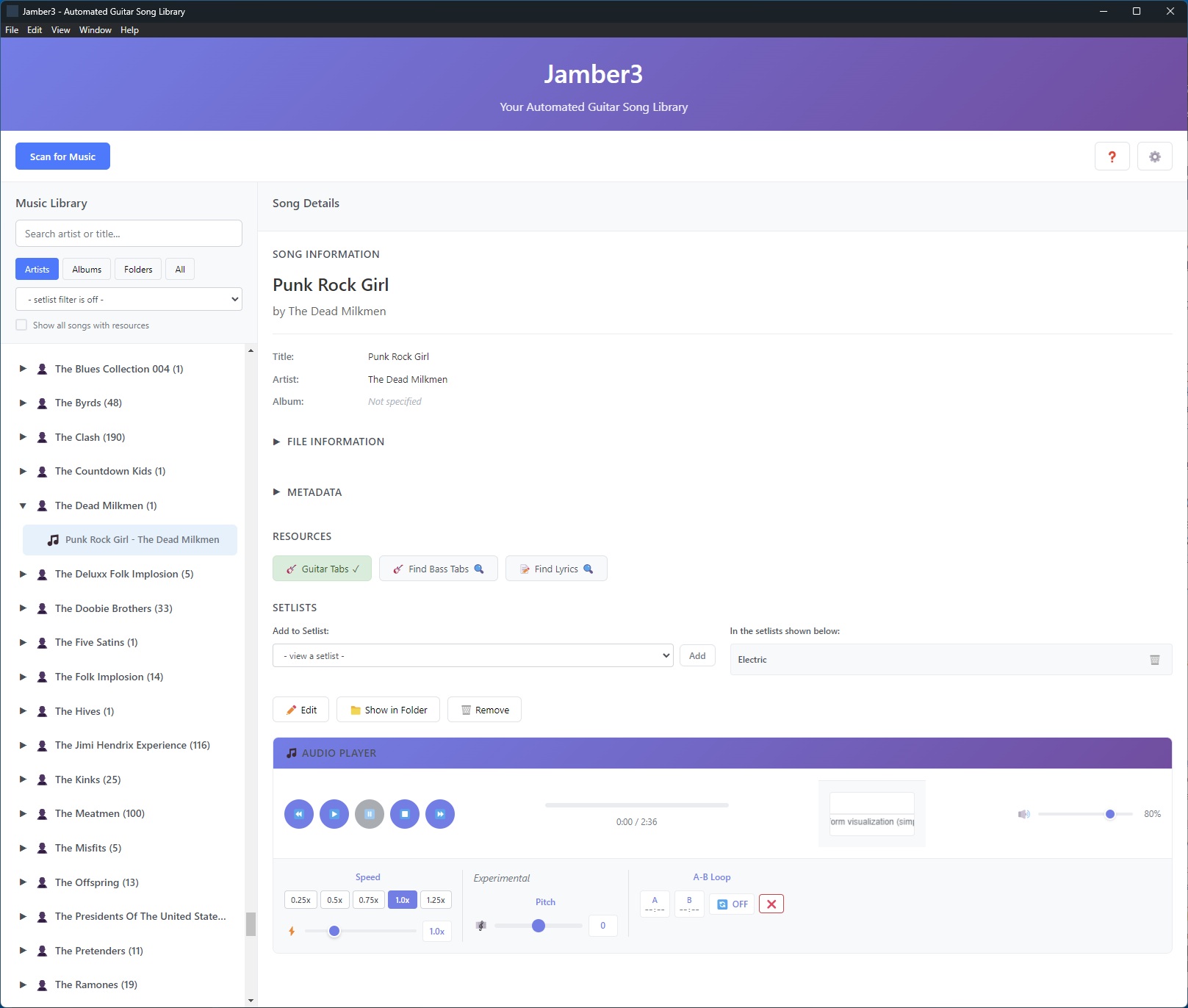
Your Automated Guitar Song Library
Organize your music collection with intelligent tablature discovery and resource management, as well as a basic audio player with speed control and looping.
Automatically scan and organize your music collection. Jamber3 intelligently catalogs your songs with metadata extraction and duplicate detection. Song info can be edited without touching your local files ever!
Find guitar tabs and chord charts for your songs automatically. Jamber3 searches multiple sources to locate the best tablature resources and allows saving of your favorites.
Built-in audio player with speed control and loop functionality. Practice along with your favorite songs at your own pace.
Create and manage setlists for performances or practice sessions. Organize songs by difficulty, genre, instrument or whatever custom categories help you.
Discover YouTube videos, lyrics, and other learning resources for each song. Build a comprehensive practice library.
Native Windows desktop app built with Electron. Works offline and integrates seamlessly with your file system.
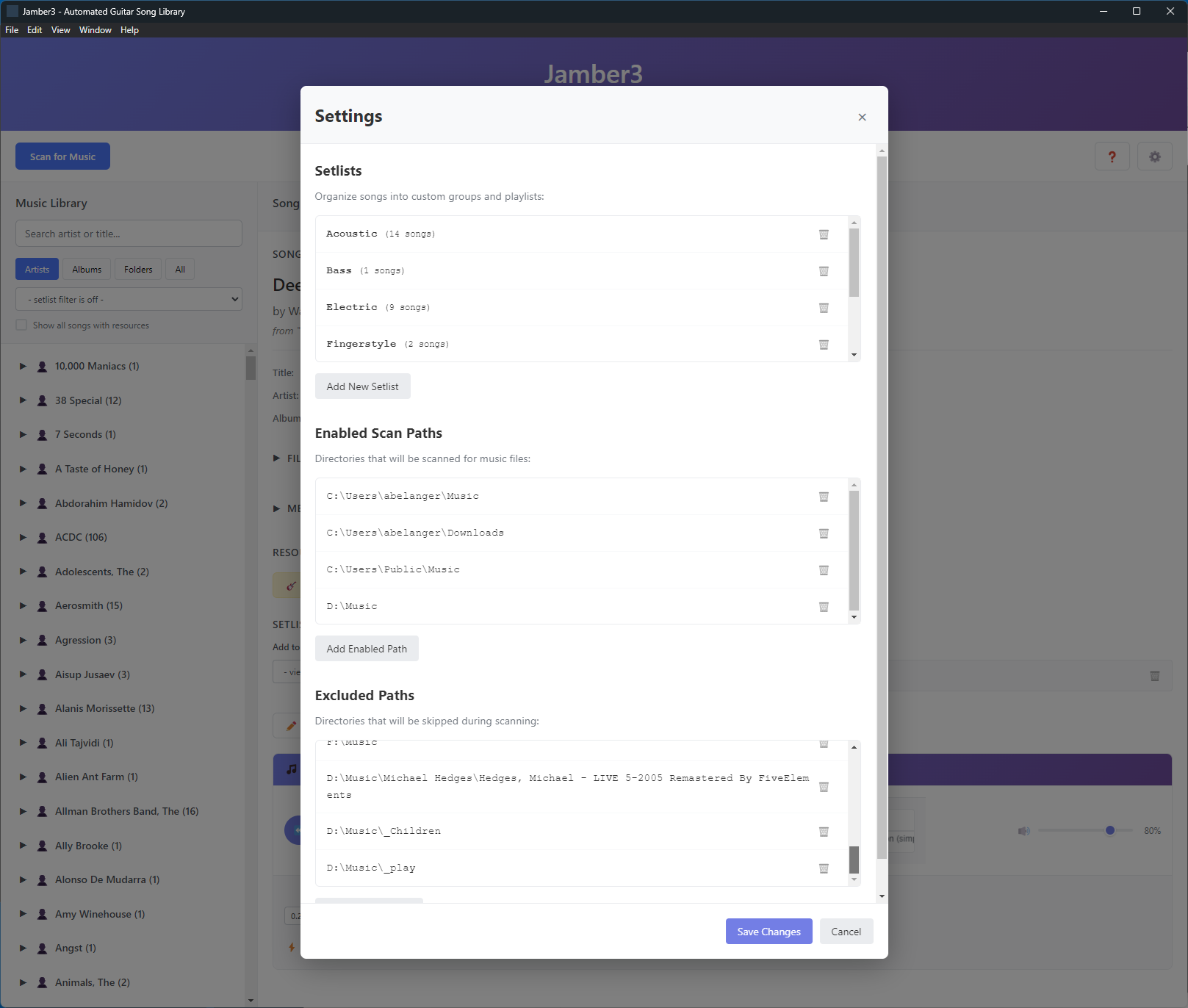
Settings page lets you create playlists, add your music directories, exclude subdirectories you don't want scanned.
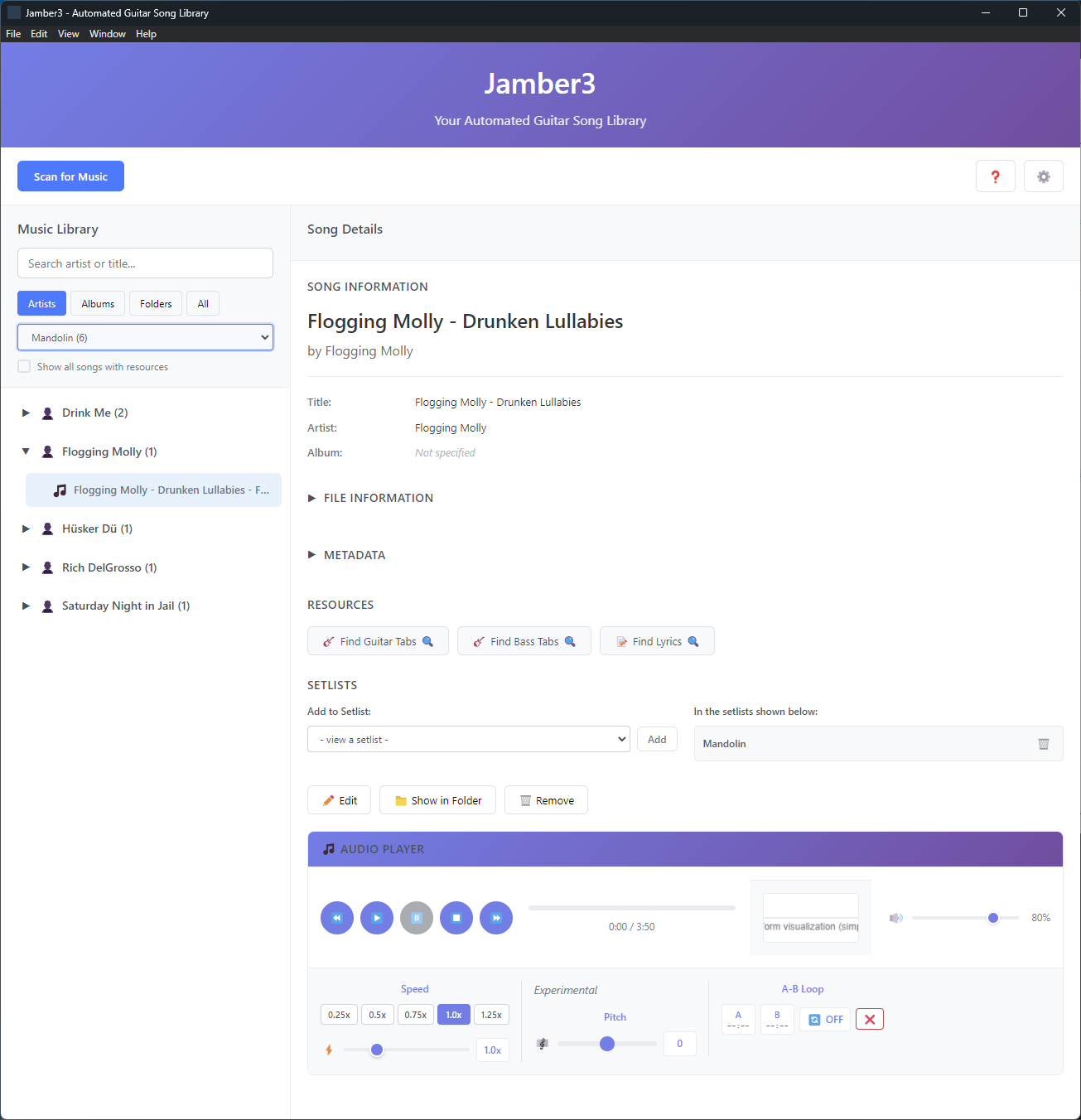
Song page lets you view, edit, search for and save learning resources.
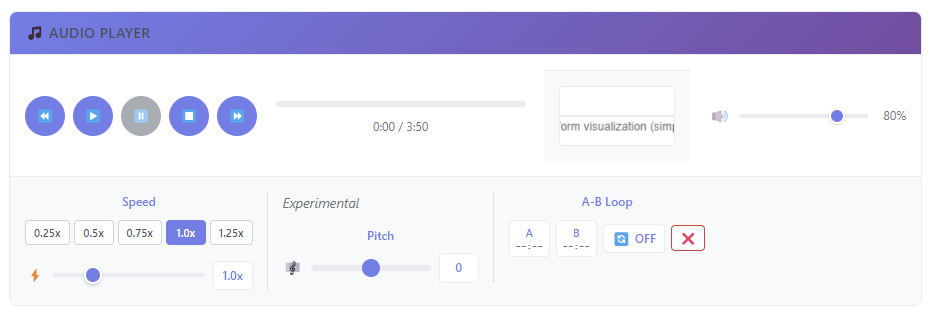
Audio player provides quality playback with simple speed control and looping for help learning.
Windows Desktop Application
No registration required • Installs in minutes
Since Jamber3 is not digitally signed with an official certificate, Windows will display a security warning when you run the installer. This is normal for independent software and doesn't mean the application is harmful.
You will see a dialog that says:
"Windows protected your PC - Microsoft Defender SmartScreen prevented an unrecognized app from starting."
To proceed with installation:
If you're uncomfortable installing an unknown executable file, you can download the source code and build Jamber3 yourself:
This way you can be absolutely certain the software is safe since you can inspect the entire codebase before building and running it.
Jamber3 supports MP3, WAV, and M4A audio files. The application can scan your entire music library automatically. Add specific folders, exclude specific subfolders.
Yes! Jamber3 is a desktop application that works completely offline. Internet connection is only needed for discovering online resources like tabs, lyrics and videos.
Absolutely. All your music data stays on your computer. Jamber3 doesn't upload or share your music collection with any external services. Jamber3 creates a catalog of file locations and online resources, but will NEVER edit your files in any way.
Jamber3 includes light and dark themes (toggle with F9) and various view options for organizing your music library according to your preferences.